 Open Office Calc - Sort Data
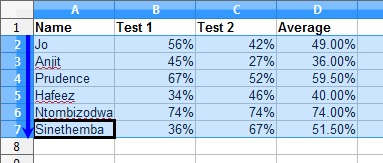
 | 1 | Click and drag to select all of the rows that you want to put in a different order. NOTE: Make sure to select the whole row.
|
|
| 2 | Having selected the data, click on Data | Sort | 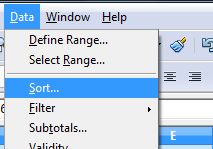 |
| 4 | In the Sort by column select the column that you wish to sort by. To sort the names in this example you will select Column A. Click on Ascending or Descending depending on what you want. Alphabetical (and numerical) order is Ascending. Click OK. You would pick Descending if you wished to sort the data in reverse alphabetical or numerical order. 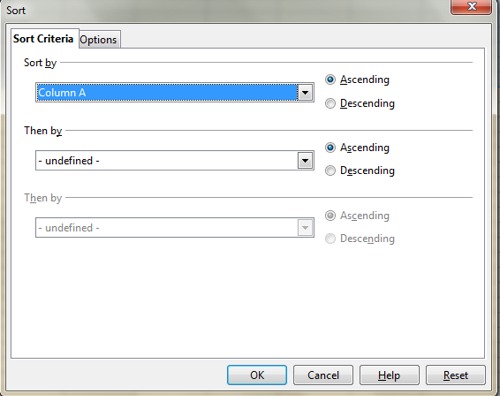 |
|
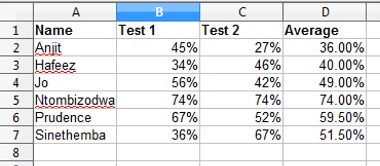
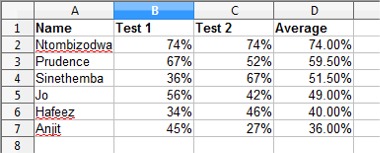
| 5 | If you picked Ascending, notice the data in this example is sorted on alphabetical order.
|
|
| 6 | You would put the students in order of merit by sorting the data in Column D in Descending order.
|
|
Produced by SchoolNet SA