Open Office Impress - Slide Transition Add
 1 |
Go to the slide after which you want to add the transition.
|
2 |
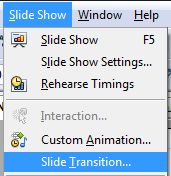
Click Slide Show | Slide Transition |
3 |
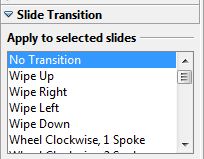
Or, click the slide transition arrow on the Tasks Pane.
|
4 |
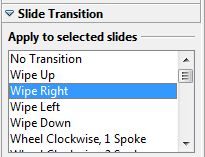
Pick one of the transition effects. NOTE: Once the transition effect is chosen, it will automatically play for preview.
|
5 |
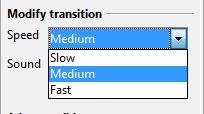
Set the transition's speed by clicking the Speed arrow and picking Slow, Medium or Fast.
|
6 |
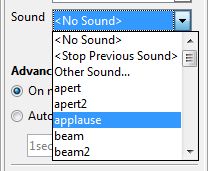
If you want a sound to play during a slide transition, click the sound arrow. Then, pick a Sound
|
7 |
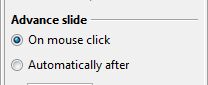
In the Advance slide selection, pick On mouse click if you want to move to the next slide and play the transition effect only when you click.
|
8 |
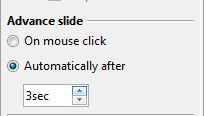
Or, to make the transition play all by itself, pick Automatically after. Then click the arrows or type in the box below to set how long you want to wait before the transition plays.
|
9 |
The transition will automatically be added to the slide. Or, If you want to play the same transition after all slides in the presentation, Click Apply To All Slides
|