 Open Office Impress - Add Animation To Text
 1 |
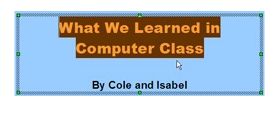
Go to the slide in which you want to add animation effects to words.
|
|
2 |
Highlight the words you want to animate.
|
|
3 |
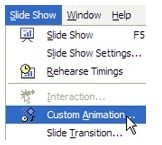
Click Slide Show | Custom Animation
|
|
4 |
Click the Add button |
 |
5 |
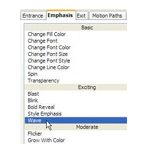
Click the Emphasis tab, and pick an Emphasis Animation effect
NOTE: You can click the Entrance tab to pick Entrace effects, which will play when you move to the slide. You can pick the Exit tab to pick the Exit effects which will play as you exit the slide. You can pick the Motion Paths tab to pick Motion Paths effect which will allow you to specify that the object will move across the screen in a particular path. |
|
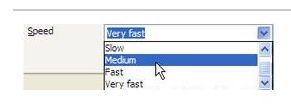
6 |
Pick an Animation Speed
|
|
7 |
Then Click OK |
 |
8 |
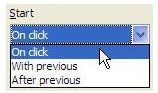
Click the Start arrow and pick whether the animation should begin when the mouse is clicked or whether the effect should begin automatically after or with a previous action. |
 |
9 |
To see if you like the animation you just added, click the Play button. |
 |

Produced by SchoolNet SA