 Open Office Writer - Headers and Footers
 | 1 | Click Insert | Header |  |
| 2 | Click Default | |
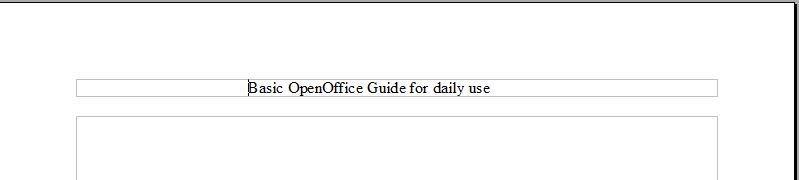
| 3 | In the box at the top of the page type the words you want to appear at the top of every page in your document. NOTE: headers are specially good for putting titles and even your name at the top of each page.
|
|
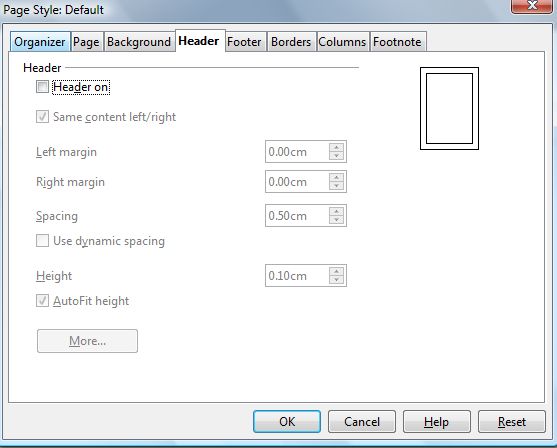
| 4 | To remove the header, click on Format | Page | 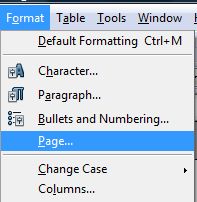 |
| 6 | When the Page Style: Default dialog box opens, you need to navigate to the Header | |
| 7 | Deactivate the Header in the Header on/off box
|
|
| 8 | A confirmation if you really want to navigate out of Header will pop-up. Click Yes | 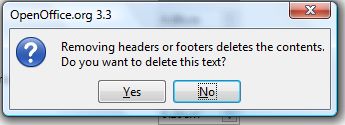 |
| 9 | Click OK
|
|
| 10 | To Insert Footer, Click Insert | Footer | |
| 11 | Click Default | 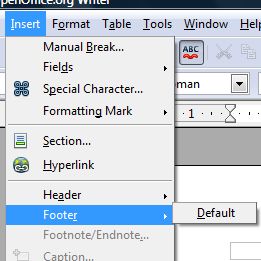 |
| 12 | In the box at the bottom of the page type the words you want at the botton of every page in your document.
|
|
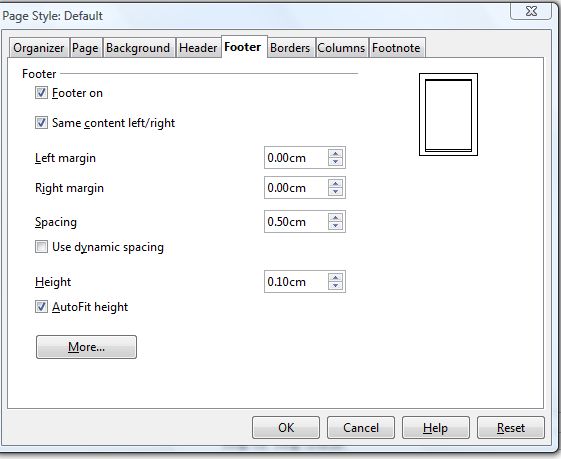
| 13 | To remove the footer click Format | Page | 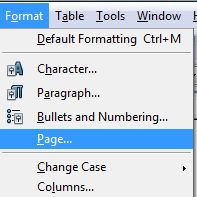 |
| 14 | When the Page Style: Default dialog box opens, you need to navigate to the Footer tab.
|
|
| 15 | Deactivate the footer on the Footer on box. | |
| 16 | A confirmation if you really want to navigate from the Footer will pop-up, click Yes. | 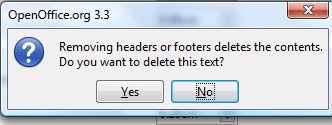 |
| 17 | Click OK on the Page style: Default Click OK. | |
| 18 | To add the date to your footer click Insert | Fields | Date. | 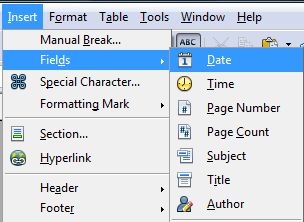 |
| 19 | To add page numbers click Insert | Fields | Page number. | 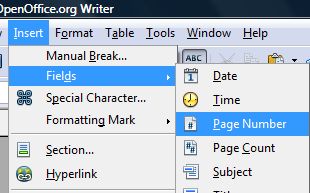 |


Produced by SchoolNet SA