 Open Office Writer - Convert Colour Image to Grayscale
 | 1 | Click on the picture. | 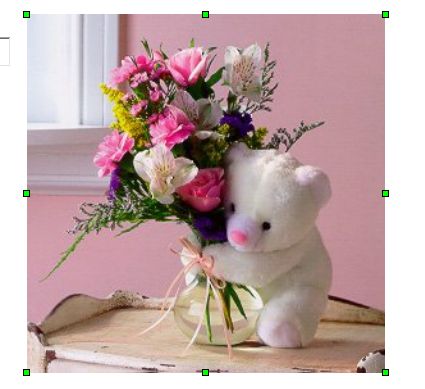 |
| 2 | The Picture toolbar should appear on your screen. NOTE: If you do not see the picture toolbar click View | Toolbars | Picture. |
 |
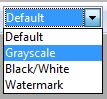
| 3 | To turn your picture into a grayscale picture, click the graphics mode on the Picture toolbar and pick Grayscale |
|
| 4 | Notice that your colour picture will be turned into grayscale picture. | 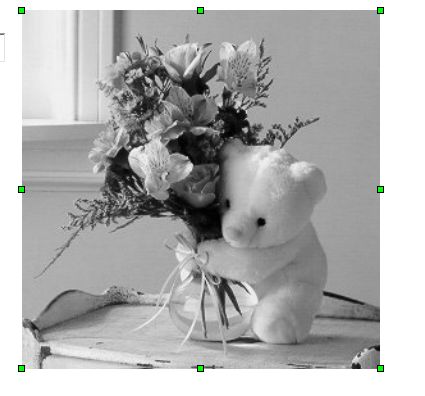 |
| 5 | To turn your picture into a Black and White picture, click the Graphics mode arrow on the Picture toolbar | 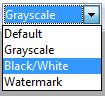 |
| 6 | Notice that your colour picture will be turned into a Black and white Picture | 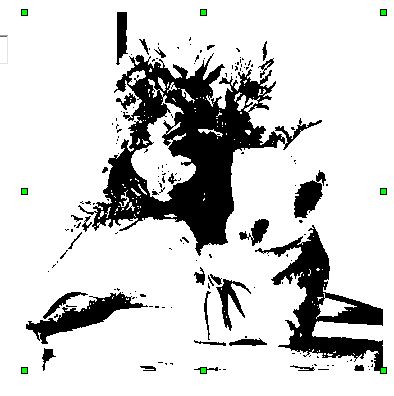 |
| 7 | ||
| 8 |
i
Produced by SchoolNet SA