| |
Brochure
Mr. Maseko needs to find an easy way to let people know about his business and the products and services it provides. What might be a good way to do this? One way is to design and hand out a company brochure. When have you seen a brochure before? What did the brochure look like? How was it folded? How might you use the computer to make a brochure for Mr. Maseko's business?
 |
Plan It |
| |
Create a folded brochure with helpful information about Mr. Maseko's
company and its products and services. Look at the following examples:
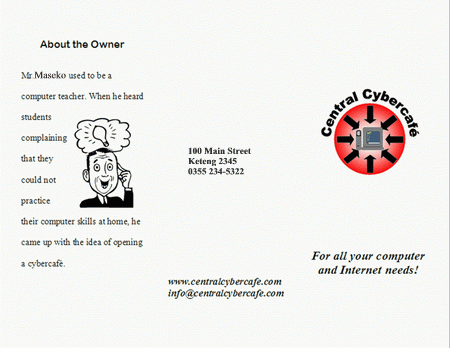
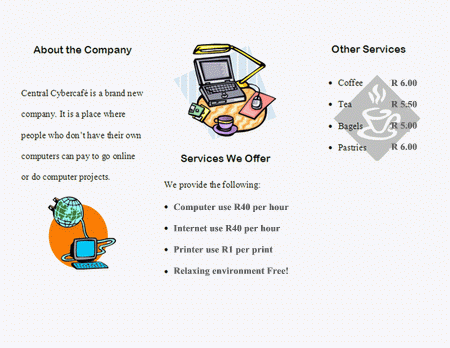
Think about the following questions, and discuss your ideas with your
partner. You might want to write your ideas on a sheet of paper.
- What information about Mr. Maseko's company should be included in the brochure?
- How might you organize the information in three columns on both the front and back sides?
- What pictures might you use to help make the written information clear?
Remember to use the rubric as a guide as you plan, do, review, and share.
For help on how to do certain skills, look at the following groups in the Help Guide:
- Word Processing Group 4: Making Paragraphs and Lines of Words Look Good
- Word Processing Group 5: Adding Pictures to Your Pages
- Word Processing Group 6: Designing Your Pages
- Word Processing Group 10: Using Preset and Advanced Features
|
| |
|
 |
Do It |
| |
- Start the word processing software, and open a new, blank document.
- Set up the page to print sideways, or landscape. Also, make the margins, or the empty space along the edges of the page, smaller so you have more room for the brochure information.
- Format the page so it has three columns.
- The first column on the left side of the page will be the inside flap of your brochure, or the first area people will see when they fold open the front cover. Here might be a good place to put some information about Mr. Maseko's new business. However, you should feel free to put any information you want here. Type a subtitle, or heading, for the column. Then, type a few sentences about the company or whatever else you would like to write about here.
- Change the look of the heading and sentences. You might want to make the heading bigger and change its style and colour so it stands out. For the sentences, you might want to change the line spacing or indents.
- When you finish formatting the heading and sentences, save both as styles that you can use to quickly change the look of other headings and sentences in the brochure.
- Add a picture if you want. Then, change the picture's text wrapping, and move and resize it as needed.
- Put the cursor at the end of or below the last word or picture in the column. Then, insert a column break so you can work on the middle column, which will be the back side of the folded brochure.
- In this column, you might want to type the company's address, telephone number, and Web site URL and e-mail address. (NOTE: You might want to look at the letterhead project you completed earlier and use the same
information.) However, you should feel free to put other information here if you like.
- Change the position and look of the information any way you like. If you think you might use any of this formatting again in your brochure, save the formats as new text styles.
- Put the cursor at the end of or below the last word or object in the middle column. Then, insert a column break so you can work on the right column, which will be the front panel of the folded brochure. (NOTE: You might need to go back to the Web site URL and the e-mail address and remove any hyperlink formatting that appears on its own.)
- The front of the brochure is a good place to put the company logo and a slogan, or a phrase about the company that catches people's attention. (NOTE: You might want to look at the slogan you put in the footer of the letterhead project you finished earlier.)
- Insert the saved logo file, and change its text wrapping. Then, change its size and position. You can also change the look and position of the slogan text.
- Put the cursor at the end of or below the last word or picture in the column. Then, insert a page break.
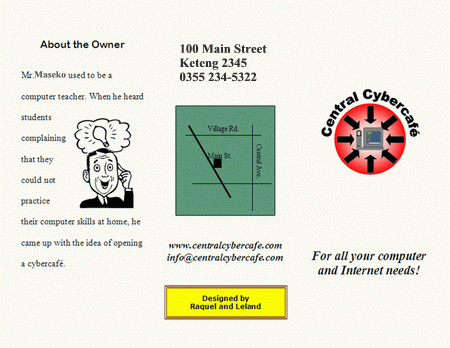
- Think about the information you would like to include on these three panels, which will be seen when the brochure is unfolded all the way. You might want to put some information about Mr. Maseko, the founder of the company. You might also want to list the company's products and services, along with some prices for each item.
- Type a heading for the left panel, and below, type the information you want to include. Use the saved text styles to change the look of the words, and if you want, add a picture. Make sure you change the picture's text wrapping so you can easily resize or move it.
- Repeat Step 16 to finish the middle and right panels on the page. You might want to make a bulleted list of the company's products and services, or use tabs to line up your information. You can also add a picture and change it into a watermark behind the words on a panel. Remember to insert a column break to end one column and start work on the next.
- Save your work as directed.
|
| |
|
 |
Review It |
| |
Look over your brochure. Make sure it has the following elements:
- Two pages with three columns of information about Mr. Maseko's
company and the products and services offered
- Text styles that have been used to format headings, sentences, and paragraphs so they look the same throughout the brochure
- Company logo
- Pictures that help make the written information clear
If any elements are missing, add them now. If you want, make other changes, as well. Remember to save your work when you are finished.
|
| |
|
 |
Share It |
| |
Be prepared to discuss your answers to the following questions:
- What are some other ways you might organize the information on a brochure?
- What was the most useful skill you used to make the brochure? For what other projects might you use the skill?
- What was the most challenging part about finishing the brochure? How did you and your partner do to overcome the challenge and finish the task?
|
|

