| |
Portfolio
To get hired for a job, many working professionals need to show
employers examples of their best work. How might someone organize and present examples of his or her best work? One way is to create a portfolio, which is a collection of photographs, drawings, written reports, and other papers that prove someone's ability to do a certain type of job. Although most portfolios are in notebooks or cases, many people now make electronic portfolios that can be seen on the Internet or a CD-ROM.
 |
Plan It |
| |
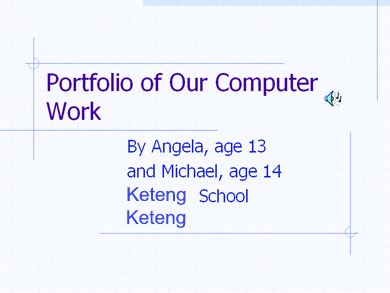
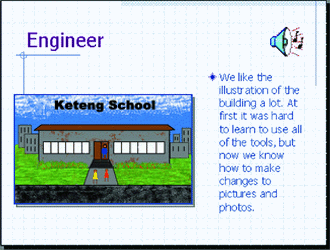
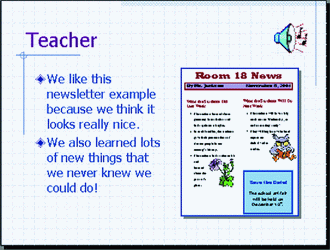
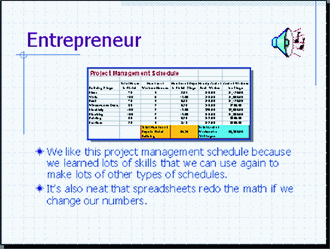
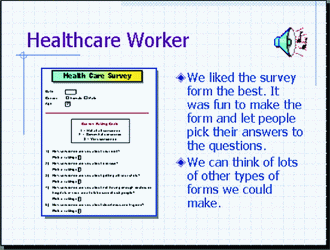
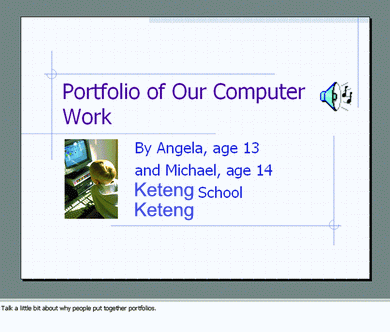
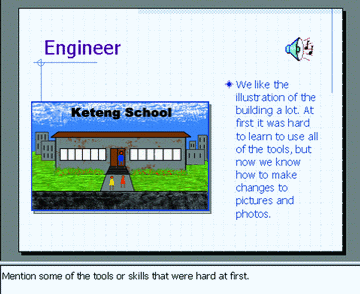
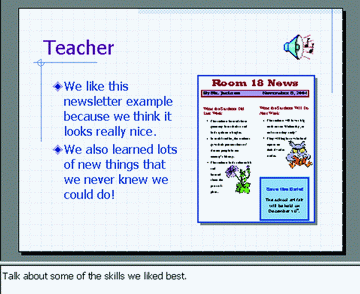
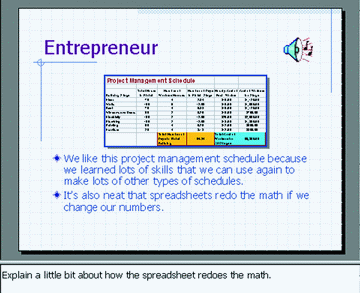
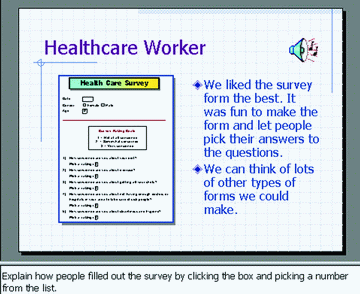
Create an electronic portfolio that shows the best examples of the work done by you and your partner during Unit 2: ICT at Work. Look at the following example:
Read the following questions, and discuss your ideas with your partner. Write your ideas on a sheet of paper, and draw sketches that show how your presentation might be organized.
- Which activity from each of the four occupations (teacher, healthcare worker, engineer, and entrepreneur) do you think is an example of your best work?
- Why did you select each of the four activities?
- What should other people know about the four activities?
- How might you organize the work samples on different slides in a multimedia presentation?
Remember to use the rubric as a guide as you plan, do, review, and share.
For help on how to do certain skills, look at the following groups in the Intel® Education Help Guide:
- Multimedia Group 3: Building Presentations
- Multimedia Group 4: Making Slides Look Good
- Multimedia Group 5: Adding Words
- Multimedia Group 6: Adding Pictures and Artistic Effects
- Multimedia Group 7: Adding Sound, Movies, and Links
- Multimedia Group 8: Adding Animation and Special Effects
- Multimedia Group 9: Setting Up and Playing a Presentation
|
| |
|
 |
Do It |
| |
- Start the multimedia software, and open a new, blank presentation.
- Insert a title slide, and type a title for your portfolio. Then in the box below, type the name and age of you and your partner. You should also type the name and location of your school.
- Decide which occupation's work example you want to show on the next slide. Then, insert a slide by picking a layout that you think would work well for the example. (NOTE: For best results, pick a layout that has a title box, a box for a picture or an object, and a box where you can type a few sentences.)
- Type the occupation as the title of the slide.
- Next, add the best example of your work from all of the activities you did for the occupation. If you want to add a word processing document, spreadsheet document or chart, or multimedia slide as an example, insert it into the slide as an object. (For help, see Multimedia Skill 7.8: To insert another document as an object.) But if you want to add the illustration you did for Ms. Kim, the engineer, just insert it as a picture.
- Drag the inserted object into the picture or object box on the slide. Make the object bigger or smaller, and add a border around it. You might also want to add a shadow effect.
- In a text box, type a few sentences about the work example you just added to the slide. Be sure to explain why you picked the activity as a good example of your work. If needed, you should also change the size or position of the text box.
- Repeat Steps 3 through 7 to make three more slides—one for each of the other three occupations.
- When you are finished adding all of the information in your five slides, pick a colour scheme or design template to make your presentation look professional. (NOTE: Later, check to see if you need to add a fill colour, such as white, to the objects in your slides. The background of the object might blend in with the new background of the slides.)
- You might also go to the Slide Master and change the look of the title and other written information so all of your words look the same from slide to slide.
- Add transitions, animation, sound, and video effects to your slides, if appropriate. If possible, you might even want to record your voices on the different slides. Be sure you set the timing for animation and other effects on each slide, and try not to add too many different effects. The goal is to make the presentation look professional.
- If you want to put the slides in a different order, go to the Slide Sorter and make your changes.
- Set up the slideshow to play as whatever type you want, and pick the way you want to move from one slide to another.
- Play your presentation to make sure everything works the way it should. Make any desired changes.
- Save your work as directed.
|
| |
|
 |
Review It |
| |
Look over your completed portfolio. Make sure it has the following elements:
- Title slide with your names and ages, as well as the name and location of your school
- One slide for each of the four occupations, with the name of the
occupation, the work example inserted as an object or picture, and an
explanation of why you think the activity represents your best work
- Same colour scheme or design used on all slides
- Same formatting for all titles and sentences on all slides
If any elements are missing, add them now. If you want, make other changes, as well. Remember to save your work as directed. Then, print your slideshow as handouts with two slides on each sheet of paper (or as instructed).
|
| |
|
 |
Share It |
| |
Be prepared to discuss your answers to the following questions:
- What new multimedia skills did you use to make your portfolio?
- What did you do to make all of the slides in your portfolio look the same?
- Which of the four sample activities in your portfolio is your overall
favourite? Why?
|
|