| |
Article
Everybody in your community plays an important role—including you and your partner! What is one way that members of your community can find out about the good things that important people do? One way is to read about them in a newspaper or on an Internet news site. Have you ever seen or read an article in a newspaper or on the Internet? What articles about people do you remember? What did those articles say?
 |
Plan It |
| |
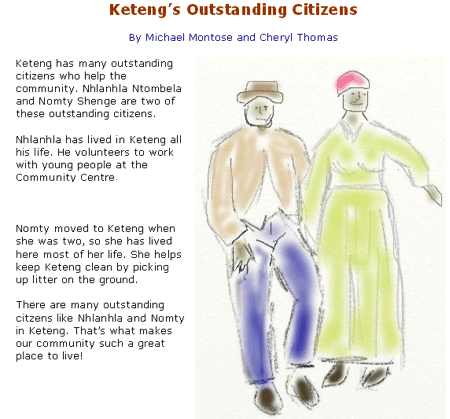
Work with your partner to write a newspaper article about each other and the important role you both play in your community. This article will then be turned into a Web page that can be viewed on the Internet. Look at the
following example:
Take turns asking your partner each of the following questions. Feel free to ask your own questions, too. To help you write your articles later, write your ideas on a sheet of paper.
- What do you want people to know about you?
- What makes you unique in our community?
- What have you done to help our community?
- What are some ways you might make our community better in the
future?
Remember to use the rubric as a guide as you plan, do, review, and share.
For help on how to do certain skills, look at the following groups in the Help Guide:
- Graphics Group 2: Painting Shapes and Lines
- Graphics Group 5: Using the Drawing Tools
- Word Processing Group 4: Making Paragraphs and Lines of Words Look Good
- Word Processing Group 5: Adding Pictures to Your Pages
- Word Processing Group 12: Creating Web Pages
|
| |
|
 |
Do It |
| |
- Start the word processing software, and open a new, blank document.
- Type a title for your article. Center the title, and change the look of the words as desired.
- Below the title, write who the article is by (you and your partner). Change the look of the words.
- Begin your article by writing a short paragraph explaining that you and your partner are two outstanding citizens of your community.
- Take turns writing a paragraph about your partner. For guidance, look at the information you wrote down when you interviewed your partner.
- Work together to write a short closing paragraph.
- When you and your partner are done writing the article, change the look of the words as you wish.
- To make the article easier to read, change the line spacing and the paragraph indents. (For help, see Word Processing Skill 4.1: To change the space between lines, and Word Processing Skill 4.3: To move lines in a paragraph in or out, or to change the indent.)
- Now, you need to add pictures of yourselves below the written information in the article. If you want, you can use the shape and line drawing tools to make cartoon-like pictures of yourselves. You can then add colour to the shapes and lines as needed. Or you can start the graphics program, use the different tools to make pictures, and then copy and paste those pictures into the article.
- Save your work as directed.
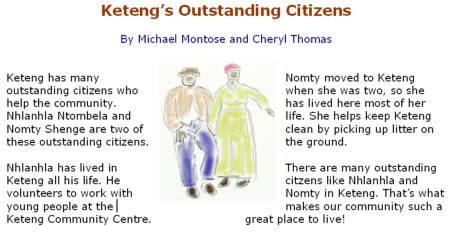
- So as many people as possible have the chance to read an article, many articles are both printed on paper and posted on the Internet. To format your article so it can be viewed in an Internet browser, save your document as a Web page. (For help, see Word Processing Skill 12.5: To save a regular word processing document as a Web page.) (NOTE: This skill may not be possible in every word processing software application. If your word processing software does not have this capability, simply skip Steps 11 and 12.)
- Start a web browser. Open the saved Web page file to see how it would look online. Then, exit the web browser.
|
| |
|
 |
Review It |
| |
Look over your article. Make sure it has the following elements:
- Title that explains what the article is about, and the names of you and your partner as the authors
- Written explanations of why you and your partner are good citizens in your community
- Indents and line spacing that make the paragraphs easy to read
- Pictures of you and your partner
If any elements are missing, add them now. If you want, make other changes, as well. Remember to save your work when you are finished.
|
| |
|
 |
Share It |
| |
Be prepared to discuss your answers to the following questions:
- What did you do to make the paragraphs in your article easy to read? For what types of projects might you use these skills again?
- What method did you use to make and add your pictures to the article?
- What other types of articles might you write?
- What other types of documents might you save as a Web page so they can be viewed on the Internet?
|
|

