Module 7 - Using the Seeing Reason Tool to Target Thinking Skills
Activity 7.6
Step 4: Creating a New Seeing Reason Project
Use the directions in this step to create a new Seeing Reason project from scratch. Use the Intel® Education Help Guide as needed to complete any ICT skills identified below.
Open Seeing Reason from your Favorites. (www.intel.com/education/seeingreason)
-
Click Enter, and then on the page that opens, click Teacher Workspace.
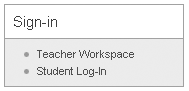
Enter your Login ID and Password and click Login.
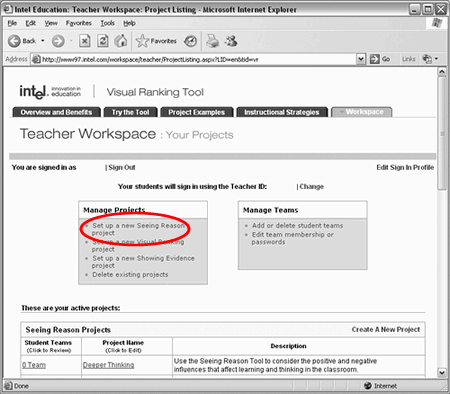
The Teacher Workspace Your Projects page will open. Under Manage Projects, click Set up a new Seeing Reason project.
-
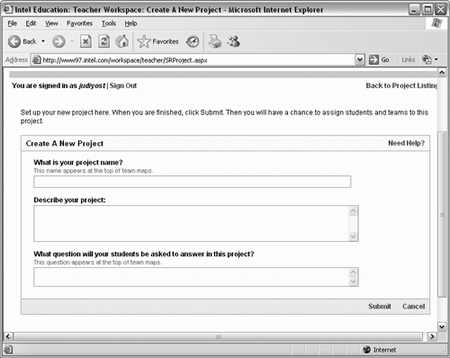
Type the Project Name. This name could specifically reference the purpose or use of the Seeing Reason Tool in your overall project. This title will appear in the Student Workspace and above your learners’ Seeing Reason maps. You can change the name of the project later if you wish. (You may want to copy and paste the title from your Project Plan.)
-
The Project Description will appear in the Student Workspace, so you should use vocabulary that is age-appropriate.
-
Type your Research Question. This question will also be displayed on the top of the learners' causal maps. (See the draft project description or copy and paste the statement from your Project Plan.)
-
Continue with either Step 5 or Step 6 to set up teams.

