Module 9 - Using the Showing Evidence Tool to Target Thinking Skills
Activity 9.6
Step 5: Creating a New Showing Evidence Project
Open Showing Evidence from your Favorites. (www.intel.com/education/showingevidence)
-
Click Enter, and then on the page that opens, click Teacher Workspace.
Enter your Login ID and Password and click Login.
The Teacher Workspace Your Projects page will open. Under Manage Projects, click Set up a new Showing Evidence project.
- When setting up a new Showing Evidence project, consider the following:
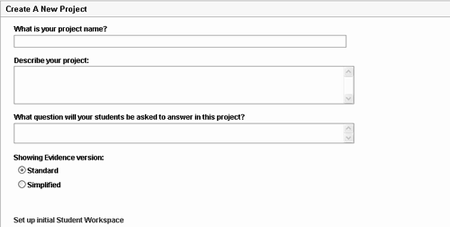
- The Project Name could specifically reference the purpose or use of the
Showing Evidence Tool in your overall project. This title appears in the learner Workspace as well as above your learners’ Showing Evidence cases. You can change the name of the project later if you wish. (You may want to copy and paste the title from your Project Plan.)
| Note: When more than one project is assigned to a team, a list of available projects will appear on the Student Workspace page. Learners should be able to differentiate the projects by looking at the project names. This is one reason that you should create a project name that specifically identifies the focus or use of the Showing Evidence Tool, rather than just the project name. |
-
The Project Description appears in the Student Workspace, so you should use vocabulary that is age-appropriate. (You could copy and paste the description from your Project Plan.)
- The Prompt (the section asking, What question will your learners be asked to answer in this project?) is also displayed on the top of the learners' Showing Evidence case.
-
Select the Standard or Simplified version of the tool. The simplified version does not require learners to rate the evidence or support, nor explain how the evidence supports or opposes the claim. This version may be helpful with younger learners or a during practice session where you simply want learners to get used to the idea of documenting evidence and weighing support for a claim.
-
You can change the vocabulary of the Showing Evidence labels. The vocabulary that is used in the Showing Evidence Tool can be changed to match the particular project or subject matter that your Student Teams will be addressing.
-
You can pre-populate the Student Teams' cases to include claim(s) or unrated evidence. Set up the workspace as you want it to appear when your learners begin working on their cases.
| Note: You will not be able to change, delete, or add to any pre-populated evidence or claims after you have assigned teams—unless you unassign them first. If you have doubts about any elements you are considering to add as pre-populated items in this practice case, you may want to simply add them within the learner Workspace, rather than here in the Teacher Workspace. Since this is a practice project, it will not impact your practice project in any significant way. |
- Continue with either Step 6 or Step 7 to set up teams.

