Module 10 - Considering the Showing Evidence Tool for Your Project
Activity10.2
Reviewing Learner Work
Each learner case may be reviewed by the teacher and by a peer review team that has been assigned by the teacher. In this activity, you will review your practice case as a teacher. In the next activity, you will work with another team to peer review each other's case and project idea. Use the Help Guide if you need assistance in completing any of the ICT skills identified.
Reviewing as a Teacher
If you have logged out as a teacher, go to the Showing Evidence Teacher Workspace. (www.intel.com/education/showingevidence)
Click Enter.
Click Teacher Workspace.
-
Enter your Login ID and Password. After you click Login, you will see the page that contains your currently active projects.
Click the link that indicates how many teams are included in the project.
Click the ID of the team you would like to review.
You will see the team's current work. You cannot make changes to the work, but you may make comments as a reviewer by clicking the small triangle at the upper-right corner of the evidence, the evidence rating, the support rating, or the claim.
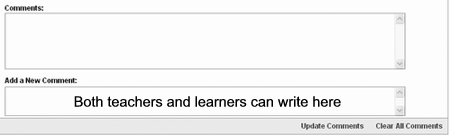
A comment box is available at the bottom of the screen to support open-ended communication between the teacher and learners in the team, for comments on the project as a whole. The comment box can only be seen by the teacher and the learner team who has created the case. This box is provided for more general comments and concerns that the teacher wants to share with the team, the team members want to share with each other when not working in the same location, or responses to existing comments.
-
Click Update Comments when done. All comments are saved sequentially, with the most recent one at the top.
Next: Proceed to Activity 10.3

